-
Writing a Managed Internet Explorer Extension: Part 2 – DOM Basic
Continuing my miniseries from Writing a Managed Internet Explorer Extension: Part 1 – Basics, we discussed how to setup a simple Internet Explorer Browser Helper Object in C# and got a basic, but somewhat useless, example working. We want to interact with our Document Object Model a bit more, including listening for events, like when a button was clicked. I’ll assume that you are all caught up on the basics with my previous post, and we will continue to use the sample solution.
Elements in the
HTMLDocumentcan be accessed bygetElementById,getElementsByName, orgetElementsByTagName, etc. We’ll usegetElementsByTagName, and then filter that based on their “type” attribute of “button” or “submit”.An issue that regularly comes up with using the generated .NET MSHTML library is its endless web of delegates, events, and interfaces. Looking at the object explorer, you can see that there are several delegates per type. This makes it tricky to say “I want to handle the ‘onclick’ event for all elements.” You couldn’t do that because there is no common interface they all implement with a single onclick element. However, if you are brave you can let dynamic types in .NET Framework 4.0 solve that for you. Otherwise you will have a complex web of casting ahead of you.
Another issue that you may run into is conflicting member names. Yes, you would think this isn’t possible, but the CLR allows it, I just don’t believe C# and VB.NET Compiles allow it. For example, on the interface HTMLInputElement, there is a property called “onclick” and an event called “onclick”. This interface will not compile under C# 4:
public interface HelloWorld
{
    event Action HelloWorld;
    string HelloWorld { get; }
}
However, an interesting fact about the CLR is it allows methods and properties to be overloaded by the return type. Here is some bare bones MSIL you can compile on your own using ilasm to see it in action:
.assembly extern mscorlib
{
  .publickeytoken = (B7 7A 5C 56 19 34 E0 89 )
  .ver 4:0:0:0
}

.module MsilExample.dll
.imagebase 0x00400000
.file alignment 0x00000200
.stackreserve 0x00100000
.subsystem 0x0003
.corflags 0x0000000b

.class interface public abstract auto ansi MsilExample.HelloWorld
{
  .method public hidebysig newslot specialname abstract virtual
          instance void  add_HelloWorld
            (class [mscorlib]System.Action 'value') cil managed
  {
  }

  .method public hidebysig newslot specialname abstract virtual
          instance void  remove_HelloWorld
            (class [mscorlib]System.Action 'value') cil managed
  {
  }

  .method public hidebysig newslot specialname abstract virtual
          instance string  get_HelloWorld() cil managed
  {
  }

  .event [mscorlib]System.Action HelloWorld
  {
    .addon instance void MsilExample.HelloWorld::
            add_HelloWorld(class [mscorlib]System.Action)
    .removeon instance void MsilExample.HelloWorld::
            remove_HelloWorld(class [mscorlib]System.Action)
  }
  .property instance string HelloWorld()
  {
    .get instance string MsilExample.HelloWorld::get_HelloWorld()
  }
}
That MSIL isn’t fully complete as it lacks any sort of manifest, but it will compile and .NET Reflector will be able to see it. You might have trouble referencing it from a C# or VB.NET project.
You can work around this issue by being explicit in this case: cast it to the interface to gain access to the event or do something clever with LINQ:
void _webBrowser2Events_DocumentComplete(object pDisp, ref object URL)
{
    HTMLDocument document = _webBrowser2.Document;
    var inputElements = from element in document.getElementsByTagName("input").Cast()
                    select new { Class = element, Interface = (HTMLInputTextElementEvents2_Event)element };
    foreach (var inputElement in inputElements)
    {
        inputElement.Interface.onclick += inputElement_Click;
    }
}

static bool inputElement_Click(IHTMLEventObj htmlEventObj)
{
    htmlEventObj.cancelBubble = true;
    MessageBox.Show("You clicked an input element!");
    return false;
}
This is pretty straight forward: whenever the document is complete, loop through all of the input elements and attach on onclick handler to it. Despite the name of the interface, this will work with all HTMLInputElement objects.
Great! We have events wired up. Unfortunately, we’re not done. This appears to work at first try. However, go ahead and load the add on and use IE for a while. It’s going to start consuming more and more memory. We have written a beast with an unquenchable thirst for memory! We can see that in WinDbg, too.
MT Count TotalSize Class Name 03c87ecc 3502 112064 mshtml.HTMLInputTextElementEvents2_onclickEventHandler 06c2aac0 570 9120 mshtml.HTMLInputElementClass This is a bad figure, because it is never going down, even if we Garbage Collect. With just a few minutes of use of Internet Explorer, there is a huge number of event handles. The reason being because we never unwire the event handler, thus we are leaking events. We need to unwire them. Many people have bemoaned this problem in .NET: event subscriptions increment the reference count. Many people have written Framework wrappers for events to use “Weak Events”, or events that don’t increment the reference count. Both strong and weak reference have their advantages.
I’ve found the best way to do this is to keep a running Dictionary of all the events you subscribed to, and unwire them in BeforeNavigate2 by looping through the dictionary, then removing the element from the dictionary, allowing it to be garbage collected.
Here is my final code for unwiring events:
[ComVisible(true),
Guid("9AB12757-BDAF-4F9A-8DE8-413C3615590C"),
ClassInterface(ClassInterfaceType.None)]
public class BHO : IObjectWithSite
{
    private object _pUnkSite;
    private IWebBrowser2 _webBrowser2;
    private DWebBrowserEvents2_Event _webBrowser2Events;
    private readonly Dictionary
        <
            HTMLInputTextElementEvents2_onclickEventHandler,
            HTMLInputTextElementEvents2_Event
        > _wiredEvents
        = new Dictionary
        <
            HTMLInputTextElementEvents2_onclickEventHandler,
            HTMLInputTextElementEvents2_Event
        >();

    public int SetSite(object pUnkSite)
    {
        if (pUnkSite != null)
        {
            _pUnkSite = pUnkSite;
            _webBrowser2 = (IWebBrowser2)pUnkSite;
            _webBrowser2Events = (DWebBrowserEvents2_Event)pUnkSite;
            _webBrowser2Events.DocumentComplete += _webBrowser2Events_DocumentComplete;
            _webBrowser2Events.BeforeNavigate2 += _webBrowser2Events_BeforeNavigate2;
        }
        else
        {
            _webBrowser2Events.DocumentComplete -= _webBrowser2Events_DocumentComplete;
            _webBrowser2Events.BeforeNavigate2 -= _webBrowser2Events_BeforeNavigate2;
            _pUnkSite = null;
        }
        return 0;
    }

    void _webBrowser2Events_BeforeNavigate2(object pDisp, ref object URL, ref object Flags,
        ref object TargetFrameName, ref object PostData, ref object Headers, ref bool Cancel)
    {
        foreach (var wiredEvent in _wiredEvents)
        {
            wiredEvent.Value.onclick -= wiredEvent.Key;
        }
        _wiredEvents.Clear();
    }

    void _webBrowser2Events_DocumentComplete(object pDisp, ref object URL)
    {
        HTMLDocument document = _webBrowser2.Document;
        var inputElements = from element in document.getElementsByTagName("input").Cast()
                            select new { Class = element, Interface = (HTMLInputTextElementEvents2_Event)element };
        foreach (var inputElement in inputElements)
        {
            HTMLInputTextElementEvents2_onclickEventHandler interfaceOnOnclick = inputElement_Click;
            inputElement.Interface.onclick += interfaceOnOnclick;
            _wiredEvents.Add(interfaceOnOnclick, inputElement.Interface);
        }
    }

    static bool inputElement_Click(IHTMLEventObj htmlEventObj)
    {
        htmlEventObj.cancelBubble = true;
        MessageBox.Show("You clicked an input!");
        return false;
    }

    public int GetSite(ref Guid riid, out IntPtr ppvSite)
    {
        var pUnk = Marshal.GetIUnknownForObject(_pUnkSite);
        try
        {
            return Marshal.QueryInterface(pUnk, ref riid, out ppvSite);
        }
        finally
        {
            Marshal.Release(pUnk);
        }
    }
}
After performing the same level of stress as before, there were only 209 instances of HTMLInputTextElementEvents2_onclickEventHandler. That is still a bit high, but it’s because the Garbage Collector done it’s cleanup. The Garbage Collector makes it a bit subjective to counting how many objects are in memory.
There are alternative ways to wire events. If the strong typing and plethora of interfaces is getting to you, it’s possible to use attachEvent and detachEvent albeit it requires converting these events into objects that COM can understand.
More of this series
- Writing a Managed Internet Explorer Extension: Part 1 – Basics
- Writing a Managed Internet Explorer Extension: Part 2 – DOM Basics
- Writing a Managed Internet Explorer Extension: Part 3
- Writing a Managed Internet Explorer Extension: Part 4 – Debugging
- Writing a Managed Internet Explorer Extension: Part 5 – Working with the DOM
- Writing a Managed Internet Explorer Extension: Part 6 – Regrets
-
Writing a Managed Internet Explorer Extension: Part 1 – Basics
I’ve recently had the pleasure of writing an Internet Explorer add on. I found this to somewhat difficult for a few reasons and decided to document my findings here.
Managed vs. Native
One difficult decision I had to make even before I had to write a single line of code was what do I write it with? I am a C# developer, and would prefer to stay in that world if possible. However, this add-on had the intention of being use commercially, and couldn’t make the decision solely based on preference.
Add-on’s to Internet Explorer are called Browser Helper Objects, often documented as BHOs as well. They are COM types, thus if we were going to do this managed, we will be doing some COM Interop. I’ve done this before, but mostly from a level of tinkering or deciding to go back to native. The .NET Framework had another benefit to me, and that was WPF. My BHO requires an user interface, and doing that natively isn’t as easy or elegant as using native libraries. Ultimately I decided to go with .NET Framework 4.0, and I can only recommend the .NET Framework 4.
Previous versions of the CLR has a serious drawback when exposing the types to COM: They always used the latest version of the CLR on the machine. If you wrote a BHO in the .NET Framework 1.1, and 2.0 was installed, it would load the assembly using the .NET Framework 2.0. This can lead to unexpected behavior. Starting in the .NET Framework 4, COM Visible types are guaranteed to run against the CLR they were compile with.
The Basics of COM and IE
Internet Explorer uses COM as it’s means of extending its functionality. Using .NET, we can create managed types and expose them to COM and Internet Explorer would be non-the-wiser. COM heavily uses Interfaces to provide functionality. Our BHO will be a single class that implements a COM interface. Let’s start by making a single C# Class Library in Visual Studio. Before we can start writing code, we need to let the compiler know we will be generating COM types. This is done by setting the “Register Assembly for COM Interop” in our project settings on the “Build” tab. While you are on the Build tab, change the Platform target to “x86” as we will only be dealing with 32-bit IE if you are running a 64-bit OS. Now that’s out of the way, let’s make our first class. We’ll call our class BHO.
namespace IeAddOnDemo
{
    public class BHO
    {
    }
}
By itself, this class is not useful at all, and nor can COM do anything with it. We need to let COM know this type is useful to it with a few key attributes. The first is
ComVisibleAttribute(true). This attribute does exactly what it looks like. The next is GuidAttribute. This is important because all COM types have a unique GUID. This must be unique per-type per application. Just make your own in Visual Studio by clicking “Tools” and “Create GUID”. Finally there is theClassInterfaceAttributewhich will be set to None. Optionally, you can set theProgIdAttributeif you want. This allows you to specify your own named identifier that will be used when the COM type is registered. Otherwise it’s your class name. Here is what my class looks like now:[ComVisible(true), Guid("9AB12757-BDAF-4F9A-8DE8-413C3615590C"), ClassInterface(ClassInterfaceType.None)] public class BHO { }So now our type can be registered, but it isn’t useful to IE. Our class needs to implement an interface that IE always expects all BHO’s to implement:
IObjectWithSite. This is an already existing COM interface that we will re-define in managed code, but will let the CLR know it’s actually a COM interface through a series of attributes.[ComImport, Guid("FC4801A3-2BA9-11CF-A229-00AA003D7352"), InterfaceType(ComInterfaceType.InterfaceIsIUnknown)] public interface IObjectWithSite { [PreserveSig] int SetSite([In, MarshalAs(UnmanagedType.IUnknown)]object pUnkSite); [PreserveSig] int GetSite(ref Guid riid, out IntPtr ppvSite); }This you can directly copy and paste into your project. Make sure you don’t change the GUID, either. This GUID is already defined by Internet Explorer. The
ComImportattribute indicates that this interface is a COM interface. TheInterfaceTypeAttributeis important. All COM interfaces we will be working is isInterfaceIsIUnknown. All COM interfaces implement a basic interface. In this case,IObjectWithSiteimplementIUnknown. We won’t actually be doing anything with this interface though that .NET can’t already do for us with the help of theMarshalclass.The GetSite and SetSite methods will be automatically called by Internet Explorer, we just need to provide the implementation. SetSite is of the most interest to us. pUnkSite is will be another IUnknown interface. Since we won’t be using the IUnknown interface, we’ll just use object instead and be happy with that. We’ll add the IObjectWithSite to our BHO class.
Before that, we need to add a few references to our project. Bring up the Add Reference dialog, and switch over to the COM tab. We’ll be adding these:
- Microsoft HTML Object Library
- Microsoft Internet Controls
.NET will automatically generate the .NET wrappers for us rather than having to declare all of them by hand like we did with IObjectWithSite. These libraries contain the useful parts of Internet Explorer that allow us to do cool things, like manipulate the Document Object Model of a page. Now let’s add our interface.
[ComVisible(true),
Guid("9AB12757-BDAF-4F9A-8DE8-413C3615590C"),
ClassInterface(ClassInterfaceType.None)]
public class BHO : IObjectWithSite
{
    private object _pUnkSite;
    public int SetSite(object pUnkSite)
    {
        _pUnkSite = pUnkSite;
        return 0;
    }

    public int GetSite(ref Guid riid, out IntPtr ppvSite)
    {
        var pUnk = Marshal.GetIUnknownForObject(_pUnkSite);
        try
        {
            return Marshal.QueryInterface(pUnk, ref riid, out ppvSite);
        }
        finally
        {
            Marshal.Release(pUnk);
        }
    }
}
The GetSite is a fairly vanilla implementation that can be used for all BHOs. Internet Explorer will call GetSite with an interface GUID. We defer this back to our object from SetSite. SetSite gives us an object, but it isn’t just any plain ‘ol boring object. It actually implements a bunch of cool interfaces, like
IWebBrowser2 andDWebBrowserEvents2_Event. SetSite is usually called twice by IE. When pUnkSite is not null, it’s an object that is IE itself. When pUnkSite is null, it means IE is shutting down and we need to our cleanup. We can cast our pUnkSite to those two interfaces which are in the COM libraries we referenced earlier. The return value in this case should always be S_OK, or 0. WithIWebBrowser2we can manipulate the DOM, andDWebBrowserEvents2_Event` we can listen for events. Let’s add some simple functionality: whenever a page is loaded, let’s display a message box with the title. Here is what my final code looks like:using System; using System.Runtime.InteropServices; using System.Windows; using mshtml; using SHDocVw; namespace IeAddOnDemo { [ComVisible(true), Guid("9AB12757-BDAF-4F9A-8DE8-413C3615590C"), ClassInterface(ClassInterfaceType.None)] public class BHO : IObjectWithSite { private object _pUnkSite; private IWebBrowser2 _webBrowser2; private DWebBrowserEvents2_Event _webBrowser2Events; public int SetSite(object pUnkSite) { if (pUnkSite != null) { _pUnkSite = pUnkSite; _webBrowser2 = (IWebBrowser2)pUnkSite; _webBrowser2Events = (DWebBrowserEvents2_Event)pUnkSite; _webBrowser2Events.DocumentComplete += _webBrowser2Events_DocumentComplete; } else { _webBrowser2Events.DocumentComplete -= _webBrowser2Events_DocumentComplete; _pUnkSite = null; } return 0; } void _webBrowser2Events_DocumentComplete(object pDisp, ref object URL) { HTMLDocument messageBoxText = _webBrowser2.Document; MessageBox.Show(messageBoxText.title); } public int GetSite(ref Guid riid, out IntPtr ppvSite) { var pUnk = Marshal.GetIUnknownForObject(_pUnkSite); try { return Marshal.QueryInterface(pUnk, ref riid, out ppvSite); } finally { Marshal.Release(pUnk); } } } }Notice that in SetSite, if pUnkSite is null, I remove the event wireup. This is required, otherwise pUnkSite won’t get released properly and IE is likely to crash when a user tries to close it.
Registering
We have our code now, but how do we get IE to do anything with the assembly? First we need to register it. The .NET Framework comes with a tool called regasm. This will register our .NET Assembly like it were a COM library. Before we can do that, we need to add a strong name to our assembly. If you don’t strong name sign the assembly, the regasm is going to complain.
What you will want to do now is open the Visual Studio Command Prompt found in your start menu along with Visual Studio. You’ll want to run it as an administrator, too and change your working directory to your project’s output. Then call regasm like this:
regasm.exe /register /codebase IeAddOnDemo.dllIf all goes well, you will see “Types registered successfully”. Let’s verify. Open up your registry by running regedit.exe and looking under
HKEY_CLASSES_ROOT\\CLSID. Remember the GUID you used in the attribute for BHO? It should be under there. In my example, I should seeHKEY_CLASSES_ROOT\\CLSID\\{9AB12757-BDAF-4F9A-8DE8-413C3615590C}, which I do.Note that if you are using a 64-bit operating system, you will see it under
HKEY_CLASSES_ROOT\\Wow6432Node\\CLSID\\{your guid here}. That’s OK and expected.We have the COM class registered, but IE still doesn’t know it’s there. We need to add it to the list of BHO’s. They live under this key:
HKEY_LOCAL_MACHINE\SOFTWARE\Microsoft\Windows\CurrentVersion\explorer\Browser Helper Objectsor this for x64 machines:
HKEY_LOCAL_MACHINE\SOFTWARE\Wow6432Node\Microsoft\Windows\CurrentVersion\explorer\Browser Helper ObjectsNote that they key “Browser Helper Objects” may not exist if there has never been a BHO installed on the machine. If it’s not there, go ahead and create it.
Finally, create a sub key under the “Browser Helper Objects” using the same GUID that was registered. Make sure to include the curly braces like you saw earlier under CLSID. So now I have a key path:
HKEY_LOCAL_MACHINE\SOFTWARE\Wow6432Node\Microsoft\Windows\CurrentVersion\explorer\Browser Helper Objects\{9AB12757-BDAF-4F9A-8DE8-413C3615590C}If you want, you can set the default value of the key to a string of your choice to make it more identifiable in the registry. Lastly, you will want to create a DWORD under the registry called NoExplorer with a value of 1. This stops Windows Explorer from loading the Add On and limiting it to just Internet Explorer. I haven’t tested my add on with Windows Explorer so I have no idea if this procedure works for it. Now go ahead and start IE, and if all went according to plan you will see this:
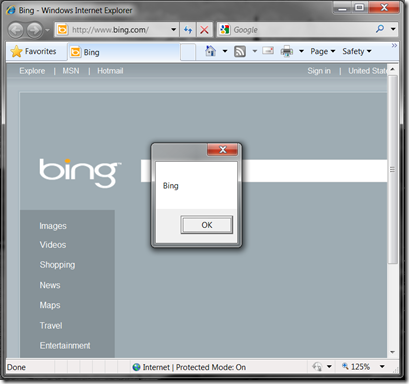
If you want to unregister your add on, simply do the following:
Delete your BHO registration. In my case it’s key
HKEY_LOCAL_MACHINE\SOFTWARE\Wow6432Node\Microsoft\Windows\CurrentVersion\explorer\Browser Helper Objects\{9AB12757-BDAF-4F9A-8DE8-413C3615590C}Call regasm like we did before, except use /unregister rather than /register.
More of this series
- Writing a Managed Internet Explorer Extension: Part 1 – Basics
- Writing a Managed Internet Explorer Extension: Part 2 – DOM Basics
- Writing a Managed Internet Explorer Extension: Part 3
- Writing a Managed Internet Explorer Extension: Part 4 – Debugging
- Writing a Managed Internet Explorer Extension: Part 5 – Working with the DOM
- Writing a Managed Internet Explorer Extension: Part 6 – Regrets